Knowledge Base
- Home
- Roles ▼
- Registration ▼
- Main Dashboard ▼
- Project Management ▼
- Crew Management
- Resource Management ▼
- Form Builder ▼
- Safety Management ▼
- Documentation Management ▼
- New Submission
- Global Communications
- Timesheet Management ▼
- Reports ▼
- Chats
- Time Off Management
- Profile
- Subscriptions
- Location Tracking Behavior on iOS and Android
- FAQs
- Troubleshooting
View Safety Submissions
This view provides access to all submissions for safety forms.
Finding Form Submissions
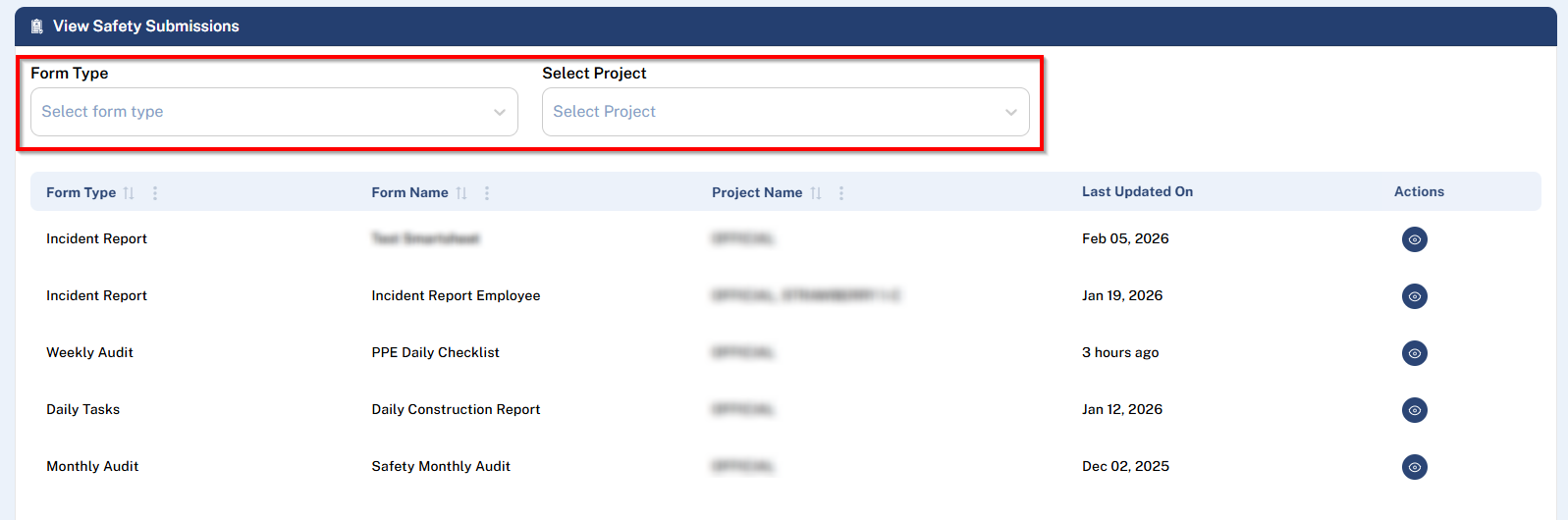
Use the filters at the top to narrow down the list:
Filter by Form Type
Filter by Project
The main list shows forms that have submissions, with these columns:
Form Type
Form Name
Project Name
Last Updated On
Actions (click the eye icon to “View Submitted Data”
Reviewing Submissions for a Specific Form
Clicking the View Submitted Data icon opens a detailed list of all submissions for that form.
Filters & Controls:
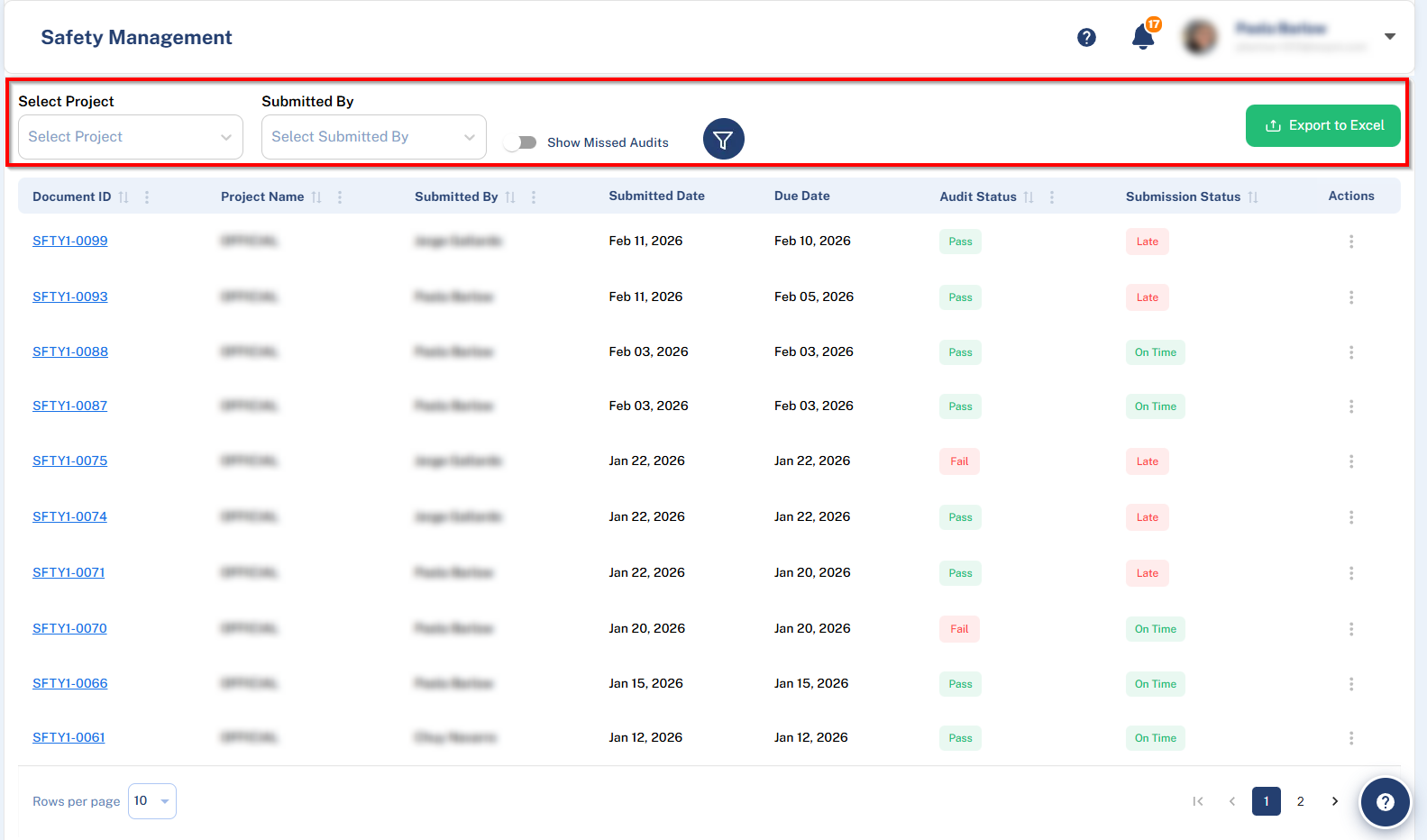
Primary Filters: Use the dropdowns to filter by Project and Submitted By.
Additional Filters: Click the filter button to access more options: Start Date, End Date, and Audit Status (for Audit forms).
Toggle: A toggle switch is available to show Missed Audits.
Submissions Table Columns:
Document ID: A clickable link that opens the generated PDF of that submission.
Project Name
Submitted By
Submitted Date
Actions
(For Audit forms only): Due Date, Audit Status, Submission Status
3. Actions:
Export: A button at the top-right allows you to Export to Excel.
Edit/History (Ellipsis Menu): Click the ellipsis (…) in a submission’s Actions column for two options:
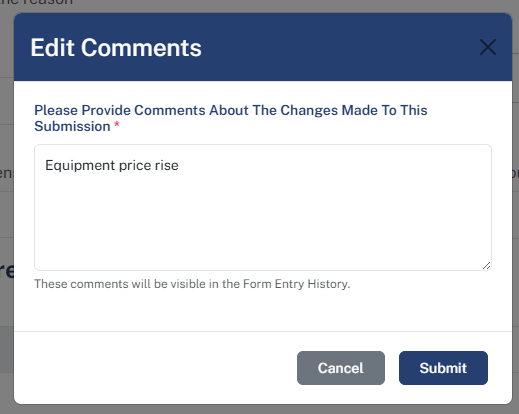
Edit: Opens the form pre-filled with the original answers, allowing you to make necessary changes. Upon clicking Submit, a modal will prompt you to add comments explaining the edits for transparency.
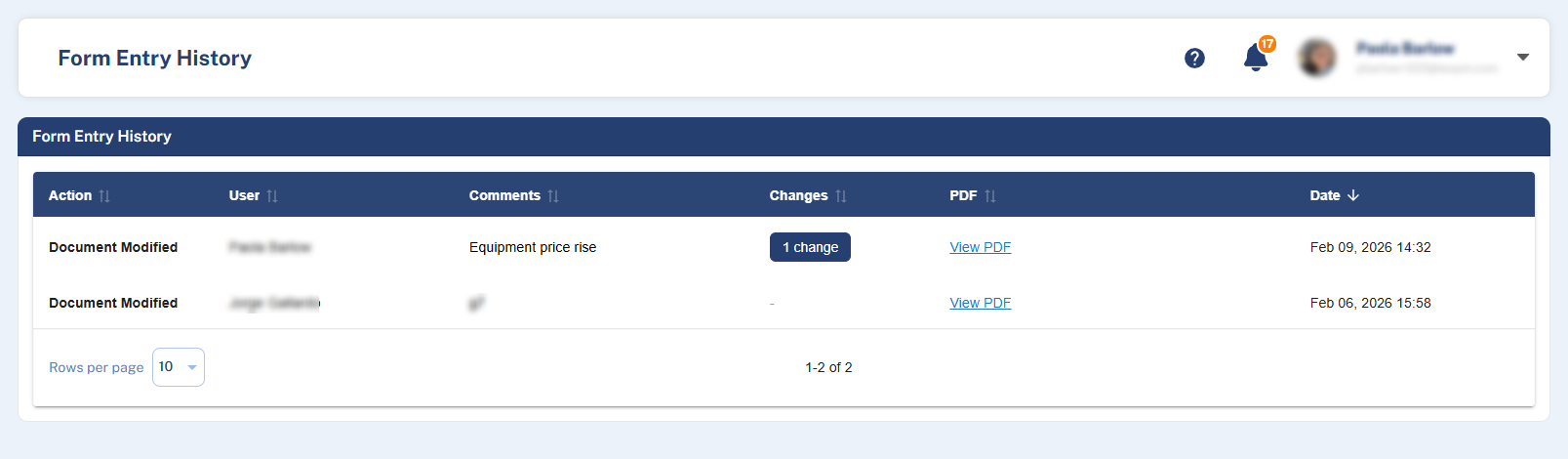
View History: Opens a complete audit trail showing all modifications made to the submission, including Action (Submitted/Modified), User, PDF links (before/after), Comments, Changes made, and Date.