
Knowledge Base
- Home
- Roles ▼
- Registration ▼
- Main Dashboard ▼
- Project Management ▼
- Crew Management
- Resource Management ▼
- Form Builder ▼
- Safety Management ▼
- Documentation Management ▼
- New Submission
- Global Communications
- Timesheet Management ▼
- Reports ▼
- Chats
- Time Off Management
- Profile
- Subscriptions
- Location Tracking Behavior on iOS and Android
- FAQs
- Troubleshooting
Technician
Description of the Role
A Construction Technician is a skilled professional who specializes in supporting various technical aspects of construction projects. They play a critical role in ensuring that construction activities are carried out efficiently, safely, and to the highest quality standards. Technicians use only the mobile app; web access is not included in this role.
Geo-Cx App Instructions
After being added to Geo-Cx by the company admin, you will receive an invitation via SMS. This message will include a link to download the application from Google Play.
After receiving an invitation via SMS, download and install the app. Register your phone number by verifying the OTP and set a new PIN. Once logged in, please accept the Location Permissions. If you need to learn more about location permissions in Android please click here. For iOS users refer to this link.
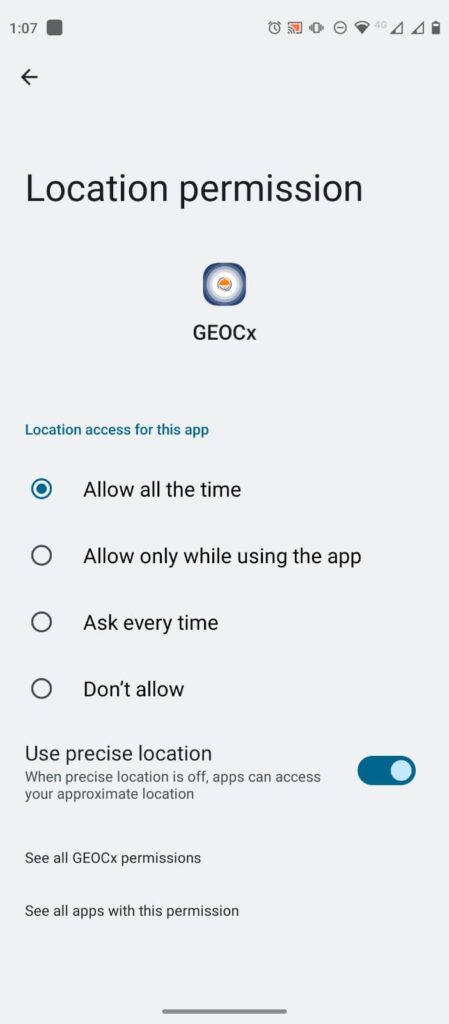
Location Permissions Android
To enable Geo-Cx you will need to share your location, please set location tracking to ‘Allow all the time.’ Be assured, we do not track your location when you are not clocked in.
If ‘Use precise location’ is not already selected, please click on the toggle to activate it.
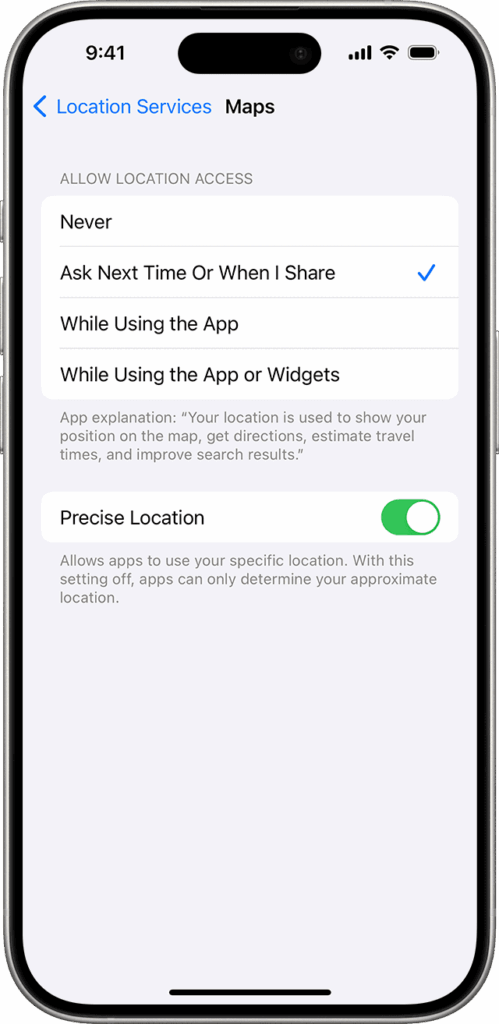
Location Permissions iOS
To enable Geo-Cx to track work-related locations, please set location tracking to ‘While Using the App’ Be assured, we do not track your location when you are not clocked in.
If ‘precise location’ is not already selected, please click on the toggle to activate it.
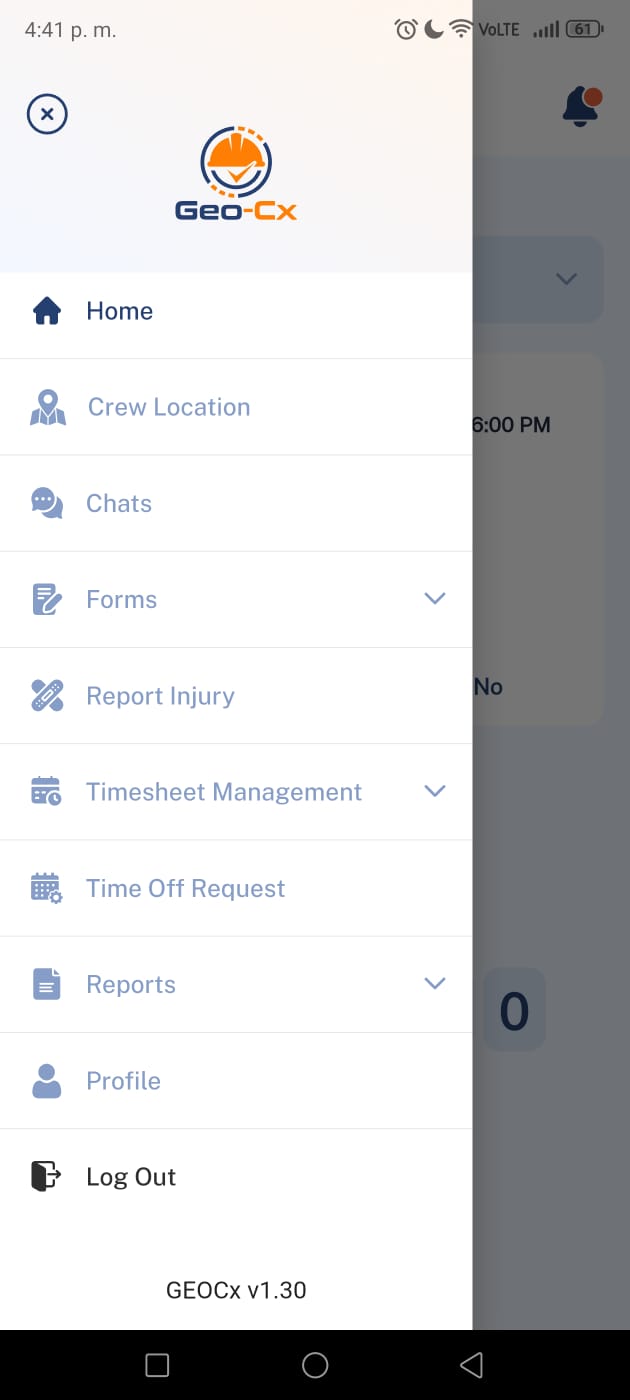
Geo-Cx App Menu
The Geo-Cx App Menu is your main navigation hub within the mobile app. Each section provides access to a core function of your daily workflow:
Chats: Communicate instantly with team members.
Forms: Submit audits, inspections, checklists, and project documentation.
Report Injury: Capture incidents in real time and notify supervisors.
Timesheet Management: Review and manage daily clock-ins and clock-outs.
Time Off Management/Request: Submit or approve time-off and PTO requests.
Reports: Access crew-level reports such as time attendance.
Profile: Update your personal information and view your role settings.
Use this menu anytime to switch between tasks efficiently and keep your project activities organized.
1. Home (Punch In/Out)
Select a project to punch in. Record today’s activities and use lunch/break as needed. Punch out at shift end. If injured, submit an injury report. Post-shift, you’ll receive an out of schedule notification, respond accordingly. Please note that in order to punch in, you need to fulfill some requirements, please access the section by clicking the button above to see more details.
You must be assigned to a project before you can punch in. Once assigned, you will receive a notification containing the project information. The punch-in option will become available on the project’s start date.
2. Chats
Send messages to individual users or crews and share images and files (up to 50 Mb).
3. Report Injury
Report any injury by submitting details and upload pictures.
4. Timesheets
Here you can see your own Timesheet and submit at the end of the week.
5. Time Off Request
Submit a Time Off Request, select the date range and reason.
6. Reports
View Time Attendance Report
7. Profile
Change your personal details (Name, Image, and PIN).