
Knowledge Base
- Home
- Roles ▼
- Registration ▼
- Main Dashboard ▼
- Project Management ▼
- Crew Management
- Resource Management ▼
- Form Builder ▼
- Safety Management ▼
- Documentation Management ▼
- New Submission
- Global Communications
- Timesheet Management ▼
- Reports ▼
- Chats
- Time Off Management
- Profile
- Subscriptions
- Location Tracking Behavior on iOS and Android
- FAQs
- Troubleshooting
Punch In/Out
Punch In/Out in App
Punch In/Out Overview:
Within the Geo-Cx mobile app, you can punch in from your designated geo-fenced area (if geo-fencing is enabled for the project). If not, you can punch in from anywhere. The app displays information about projects, shifts, and includes functionality for punching in and out. A timer tracks the time spent on each activity.
Important Considerations for Punching In/Out:
Eligibility: You must be assigned to a project by a Construction Manager or Company Admin to punch in or out.
Shift Compliance: Punching in/out is restricted to the days specified in your shift schedule. Construction Managers can activate the Saturday/Sunday toggle to classify weekend work as Overtime.
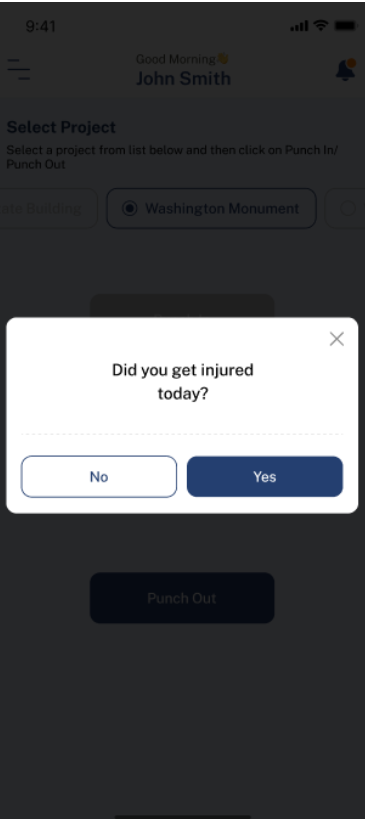
Punch out: After every punch-out, you will receive a notification prompting you to submit an injury report, if applicable. This serves as a regular reminder to report any injuries.
Punch in: It will be available until the project start date.
Geo-Fencing: You will not be allowed to punch in if you are outside the geo-fenced area.
Geo-Fencing and Automatic Punch-Out: If you exit the geo-fenced area, the system will automatically initiate a punch-out process. Initially, you will receive a notification asking if you are leaving for a lunch break. If you respond ‘Yes’, the tracker will pause until you return and select ‘Resume Work’. If you respond ‘No’ or do not answer within 5 minutes, you will be automatically punched out.
Overtime Procedures:
End of Shift Notification: At the end of your shift, a notification will inquire if you are working overtime. If you respond ‘Yes’, subsequent time is recorded as Overtime. Both the Foreman and Construction Manager will be notified of your overtime status.
Communication: You can discuss any issues at any time via the chat feature. If Overtime was not pre-approved, the Foreman can note this on your weekly timesheet, and the Construction Manager can make necessary adjustments.
Automatic and Manual Punch Out:
If you select ‘No’ in response to the overtime query, you will automatically punch out and your time will be logged in your Timesheet.
If you miss the notification, the system will automatically punch you out. You can punch in again if needed, which will notify your Foreman and Construction Manager and trigger the Overtime protocol.
Breaks:
After punching in, a ‘Lunch Break’ button will appear. Pressing this will pause time tracking. The button then changes to ‘Resume Work’, which you can tap to continue recording your work time.
Offline Punch-In Process
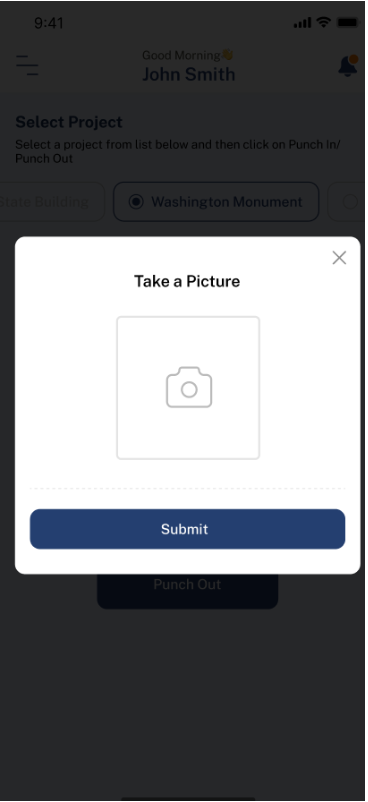
If you find yourself in an area without a signal, you can still punch in by taking a selfie. The app will recognize that you are offline and will synchronize the correct information once you regain connectivity.
Please note, Geo-Cx does not track your location when punching out.
If you forgot to punch in, clarify this with your Construction Manager. He can always can make a manual punch in for you.
Sample Screens (App)
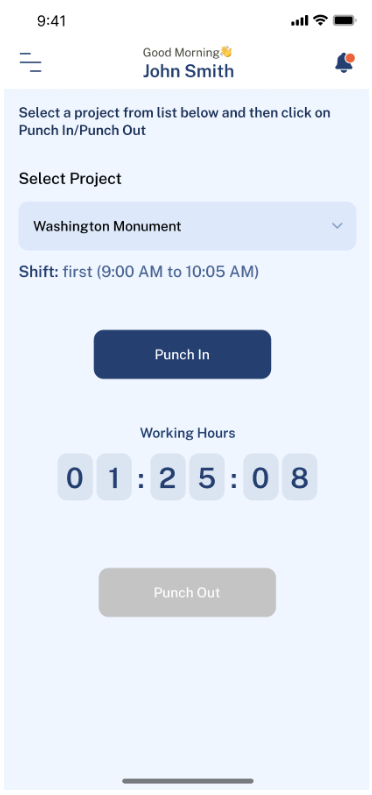
Punch In/Out Screen
Here you will find information regarding your project.
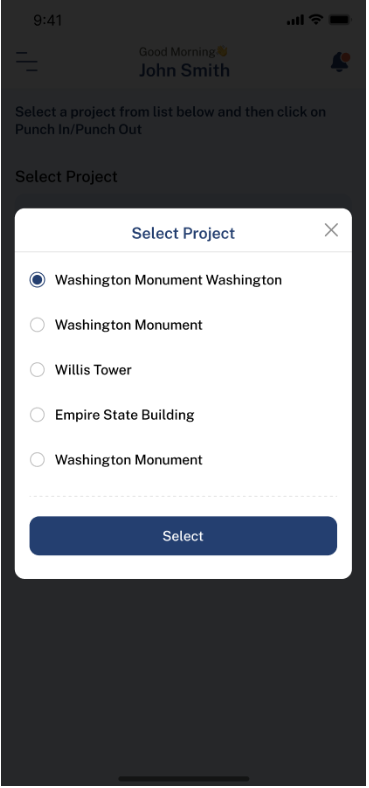
Select a Project
Selecting an appropriate project is important to generate your timesheets.
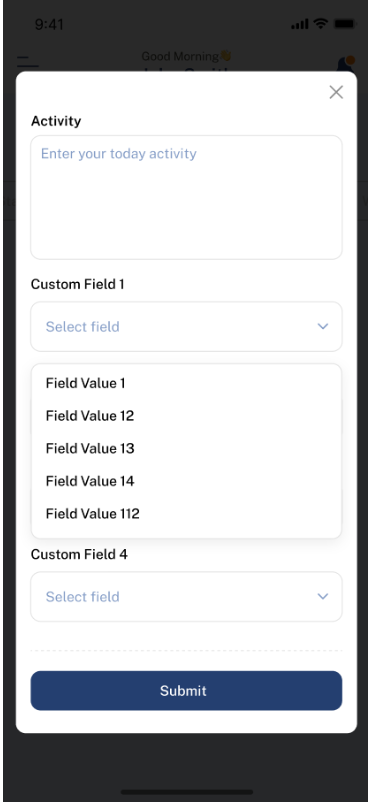
Activity & Custom Fields
Custom Fields are here to fit special needs when punching in a project.
Punch In Offline
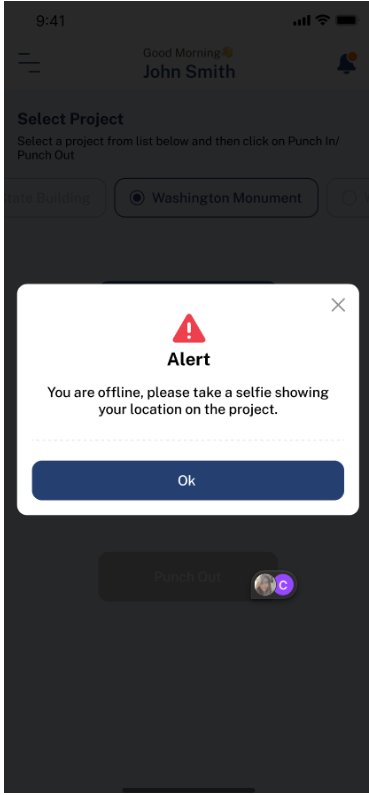
Punch In Offline
The system will detect if you are offline.
Take a Selfie
Taking a selfie will save records of the time and place the photo was taken.
Report Injury
After every punch out, this notification will be triggered to allow you to report any injury.
Background Services
Geo-Cx only track your location when you punch in. But normally you will need to give permissions of location ‘All the time’ to allow Geo-Cx to track your location when using the app.
In iOS you will need to kill the app from the background to stop the privacy notification.