Knowledge Base
- Home
- Roles ▼
- Registration ▼
- Main Dashboard ▼
- Project Management ▼
- Crew Management
- Resource Management ▼
- Form Builder ▼
- Safety Management ▼
- Documentation Management ▼
- New Submission
- Global Communications
- Timesheet Management ▼
- Reports ▼
- Chats
- Time Off Management
- Profile
- Subscriptions
- Location Tracking Behavior on iOS and Android
- FAQs
- Troubleshooting
Timesheet Management
Overview
The Timesheet Management module in the Geo-Cx platform is a comprehensive tool designed for tracking and managing employee work hours, including regular and overtime hours. This module supports the efficient handling of timesheet entries, approvals, and amendments.
Viewing Timesheets:
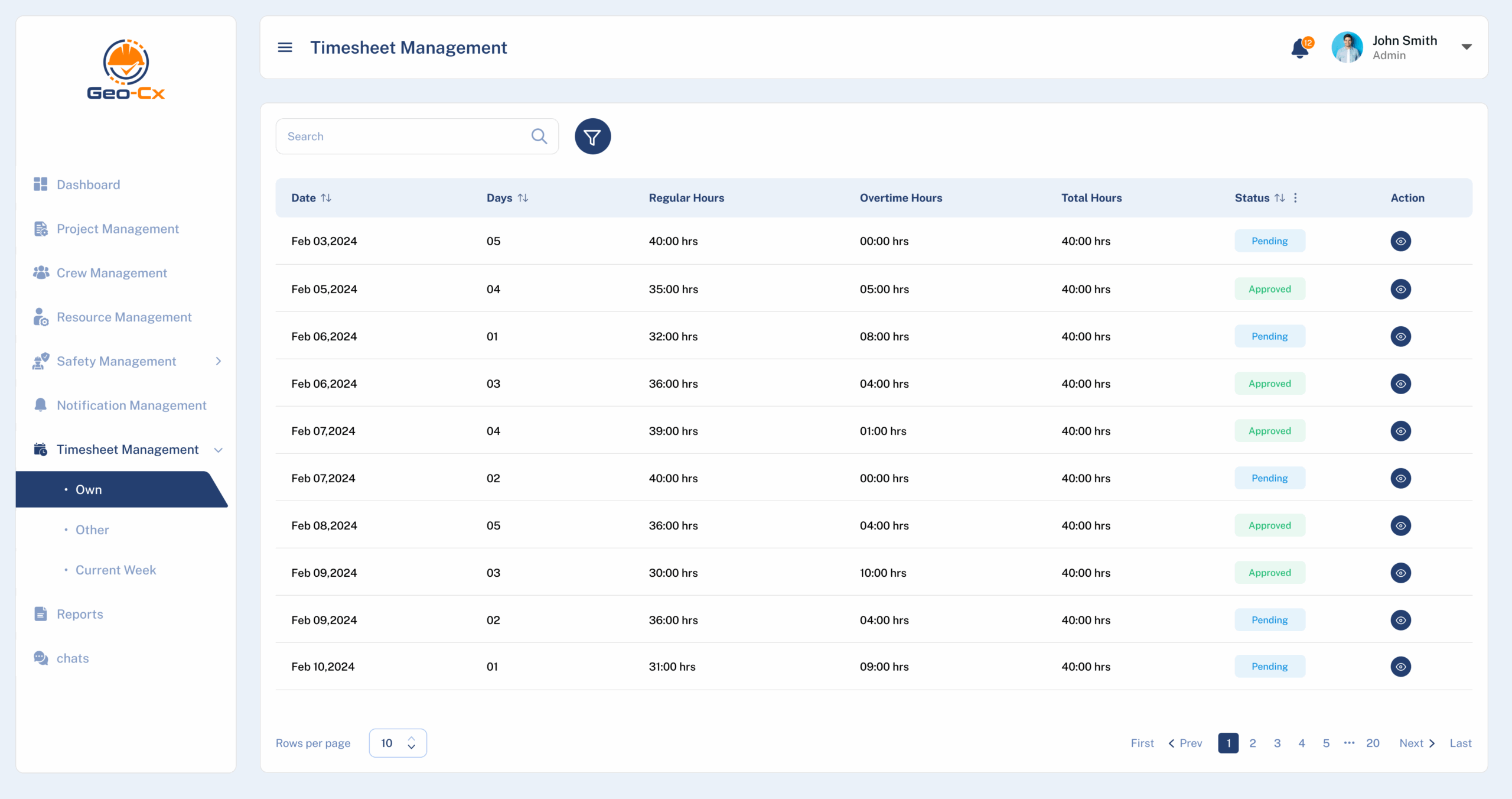
Timesheets are listed with details such as date, total days worked, regular hours, overtime hours, and total hours.
Status indicators show whether timesheets are pending, approved, or require attention.
Action buttons allow for quick edits, approvals, or further review.
Managing Timesheets:
Own Timesheets: Access and manage your own timesheet entries.
Other Timesheets: Supervisors can view and manage timesheets for their team members.
Current Week: Quickly access timesheets for the current week.
Detailed Timesheet Review:
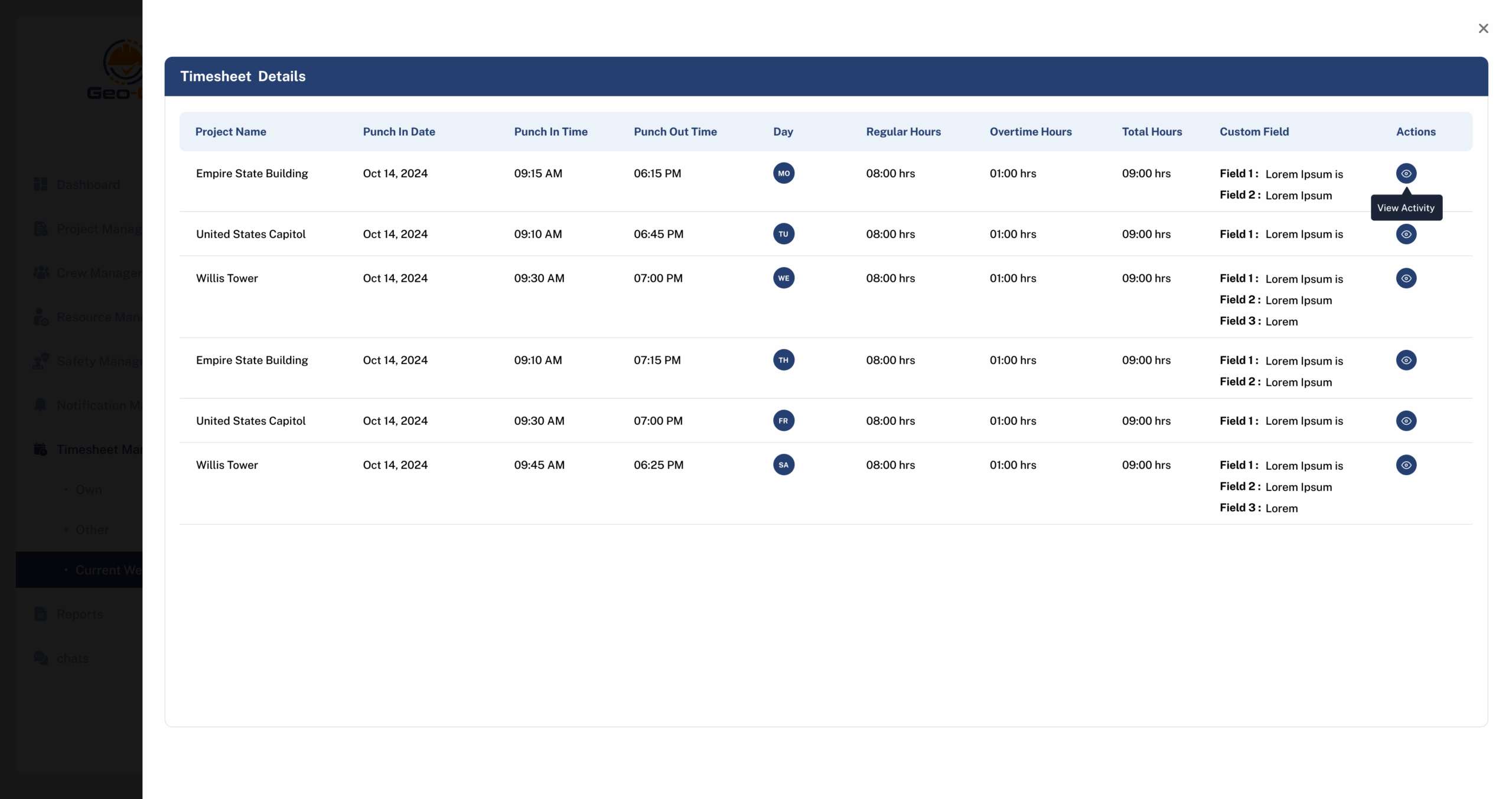
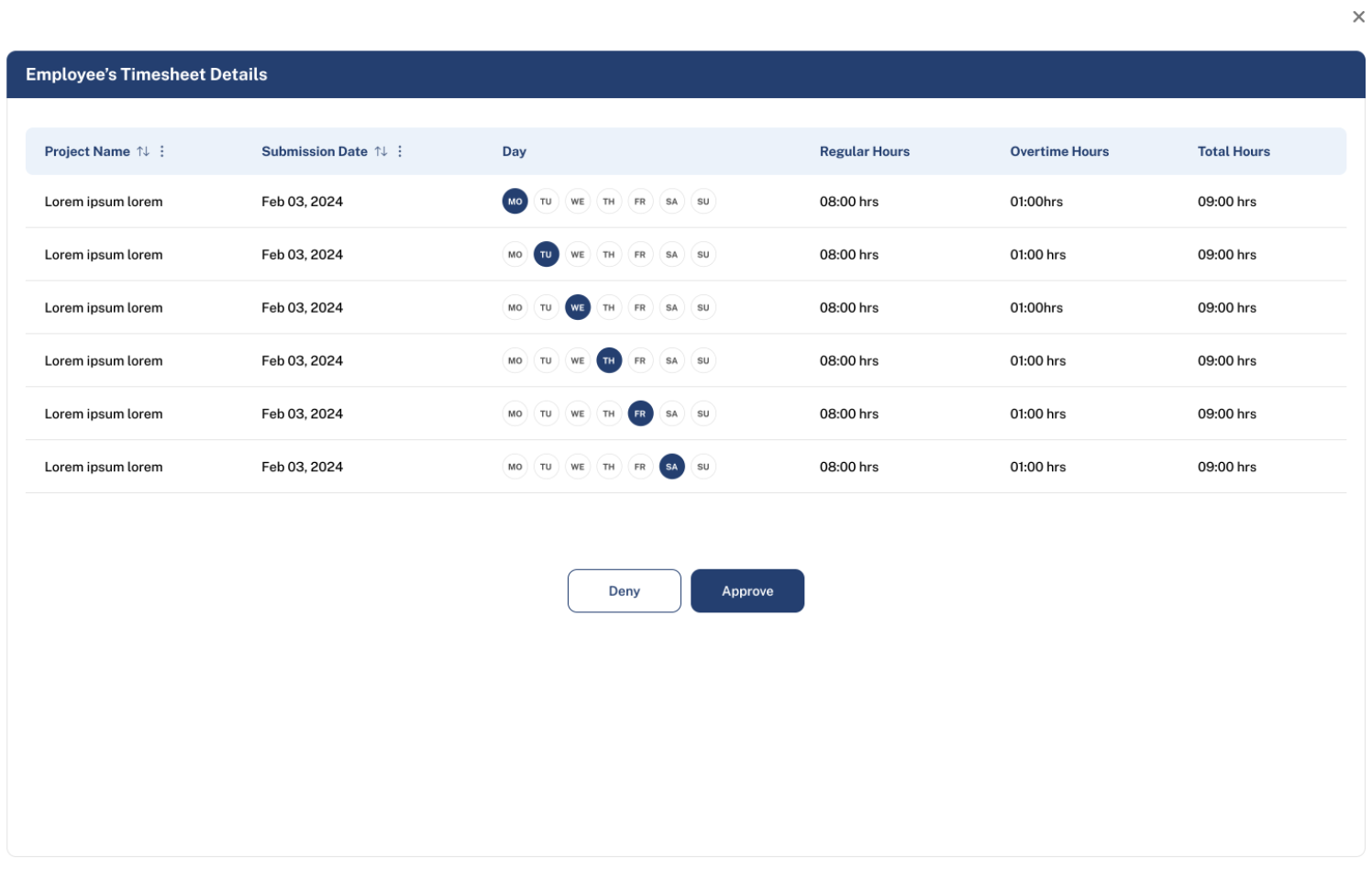
Each timesheet entry can be expanded to view detailed punch in/out times, associated project, and any comments or adjustments made.
Managers can approve or deny timesheets directly from this view, with options to add comments or request further information.
Activity Logs:
Timesheet entries include detailed activity logs showing exact punch in and out times, including adjustments made to the timesheet.
Editing Timesheets:
Users can edit timesheets to correct punch times or adjust hours. This feature is essential for maintaining accurate records and ensuring compliance with working hours regulations.
Best Practices
Timely Review: Regularly review and approve timesheets to prevent payroll delays and maintain accurate labor tracking.
Documentation: Always document any changes made to timesheets to provide an audit trail for compliance purposes.
Communication: Encourage open communication between employees and supervisors to quickly resolve any timesheet discrepancies.
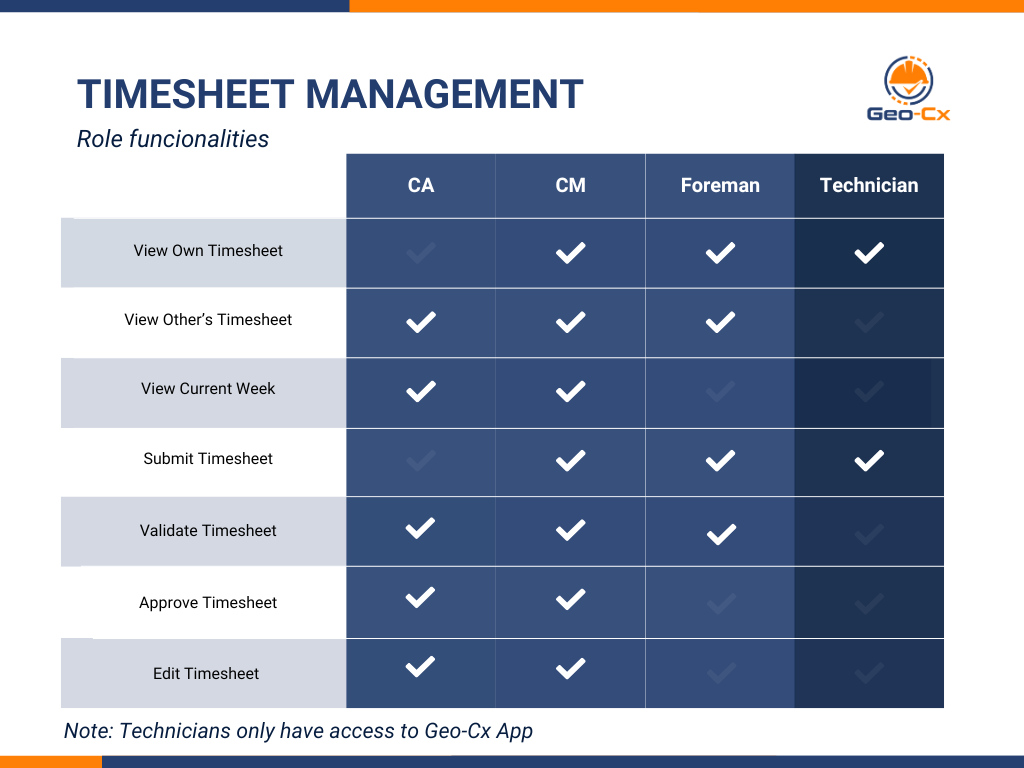
Role Functionalities
Submit Timesheet – App
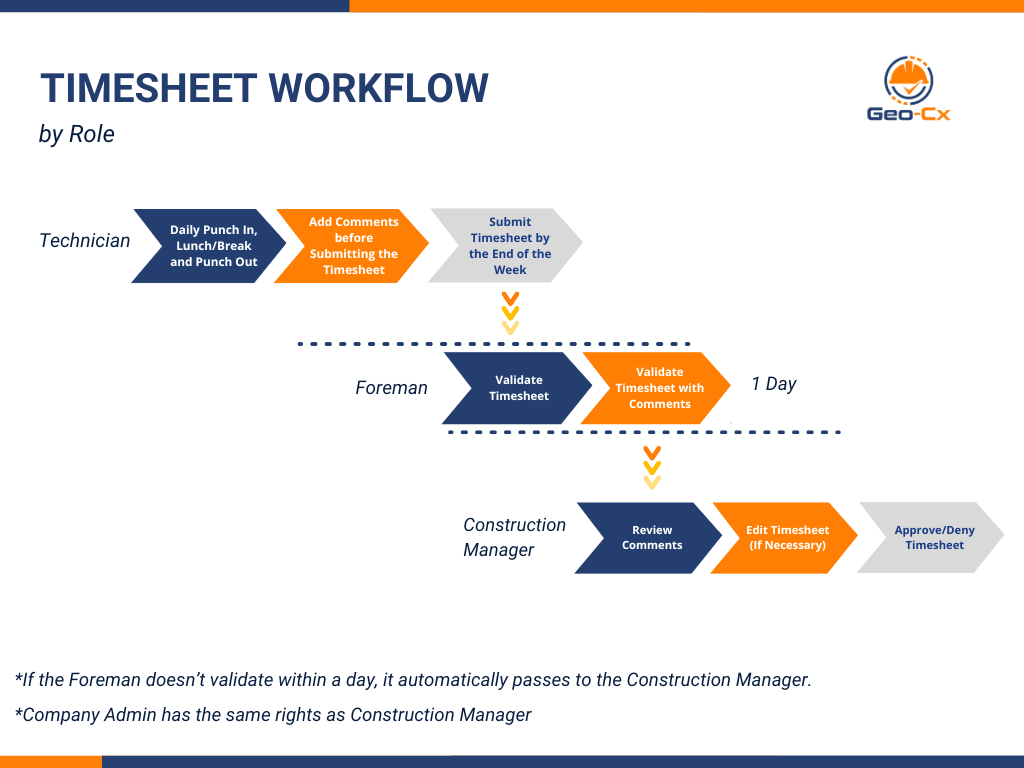
Submit your timesheet once per week, ideally at the end of your final shift. Submitting your timesheet is crucial as it allows you to track your hours daily, ensuring you are paid accurately. Technicians have the opportunity to submit their timesheets along with a single weekly comment about their hours.
After submission, the timesheet will be reviewed by a Foreman. If the Foreman notices any discrepancies, they may also add comments during validation. The Construction Manager ultimately decides whether to approve or deny the timesheet based on the Foreman’s feedback. If your timesheet is denied, you can discuss this directly with the Construction Manager to resolve any issues. After corrections are made, the timesheet may still be approved. Once the timesheet is approved, no further edits can be made, so please ensure all information is correct before approval.
For Foremen, timesheet submissions are directly reviewed by the Construction Manager, who will decide to approve or deny them. Construction Managers approve their own timesheets.
Note: Timesheets submitted by Construction Managers will be automatically approved.
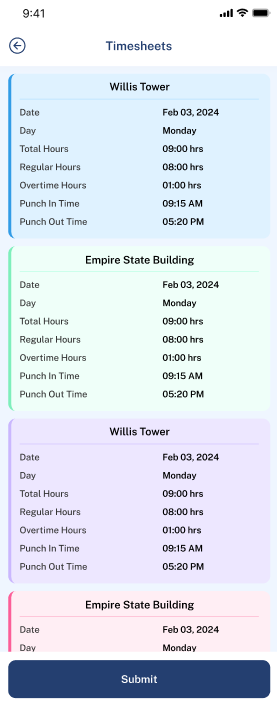
Submit a Timesheet
Each entry includes details about the date, day of the week, total hours worked, regular hours, overtime hours, and the times the employee punched in and out.
Instructions:
Navigate Timesheets: Scroll through the list to view different entries for timesheets. Each entry is separated by location and date for easy readability.
View Detailed Timesheet: Tap on any timesheet entry to view more detailed information or to make edits.
Submit Timesheet: To submit a timesheet, tap the ‘Submit’ button at the bottom of the screen. This will finalize the hours and send them for approval.
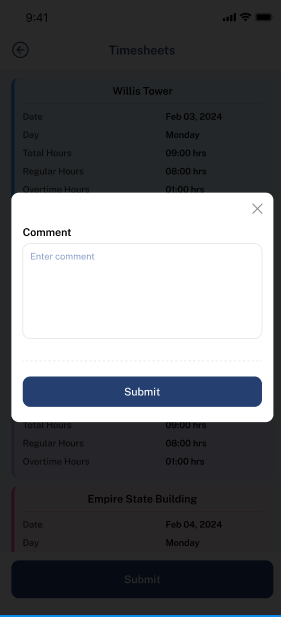
Add a Comment
Upon selecting a specific timesheet entry, you can view and add comments related to that day’s work.
Instructions:
Add a Comment: Tap on the “Comment” field to type in any relevant information or notes about the workday.
Submit Comment: After typing your comment, tap the ‘Submit’ button to save the comment with the timesheet.
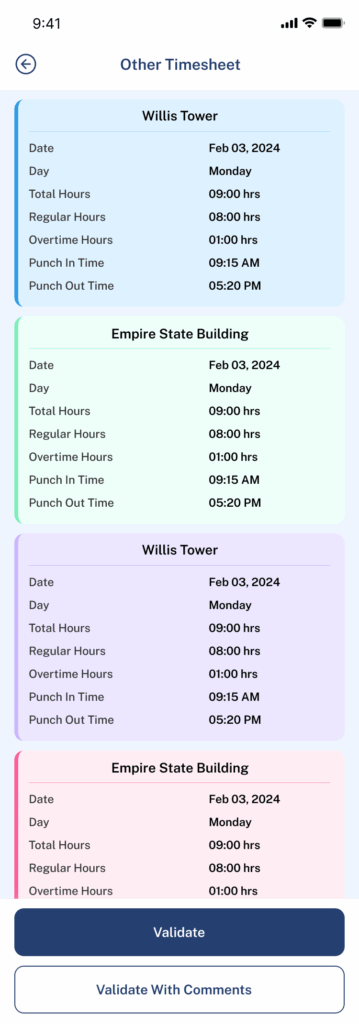
Validating a Timesheet (Foreman Only) – App & Web
Foreman can validate Technician’s Timesheets only.
Navigate to the “Timesheet Management” section.
Select a timesheet under “Pending” to view details.
Review the hours and details provided.
Click “Validate” to confirm the hours worked or “Validate with comments” to submit a comment the timesheet if discrepancies are found.
Approving a Timesheet (CM Only)
Navigate to the “Timesheet Management” section.
Select a timesheet under “Pending” to view details.
Review the hours and details provided.
Click “Approve” to confirm the hours worked or “Deny” to reject the timesheet if discrepancies are found.
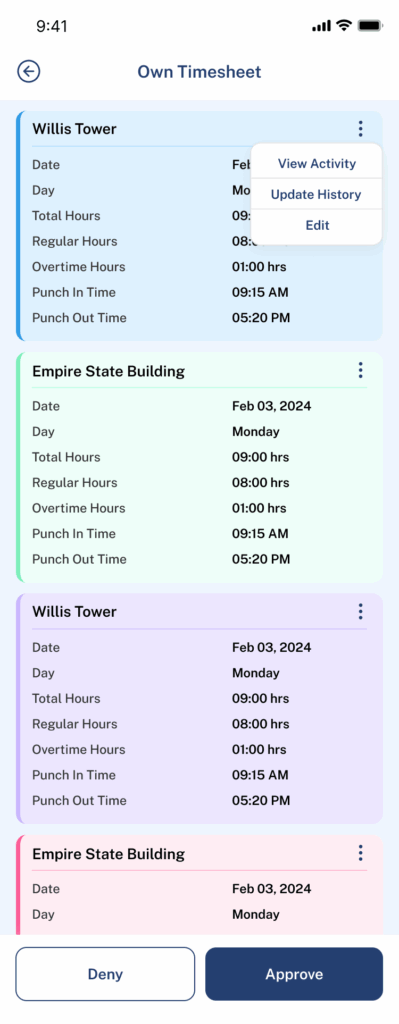
Editing a Timesheet (CM Only)
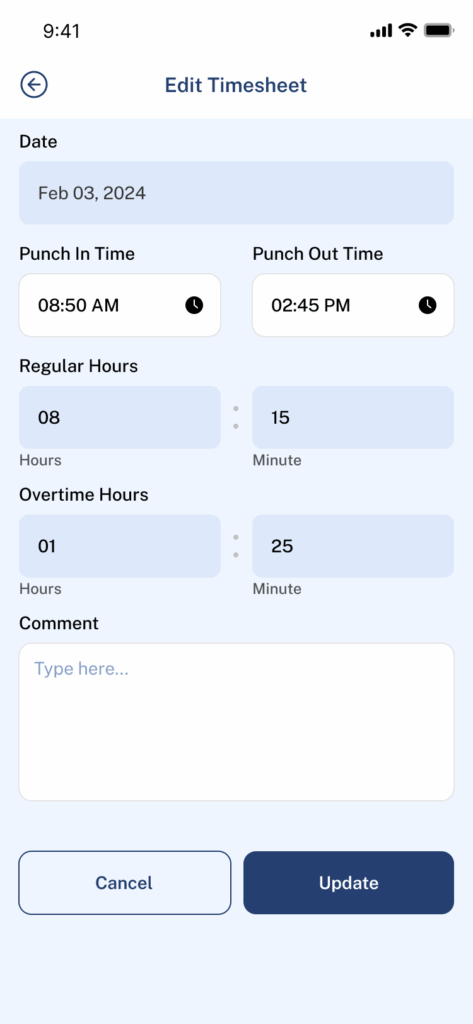
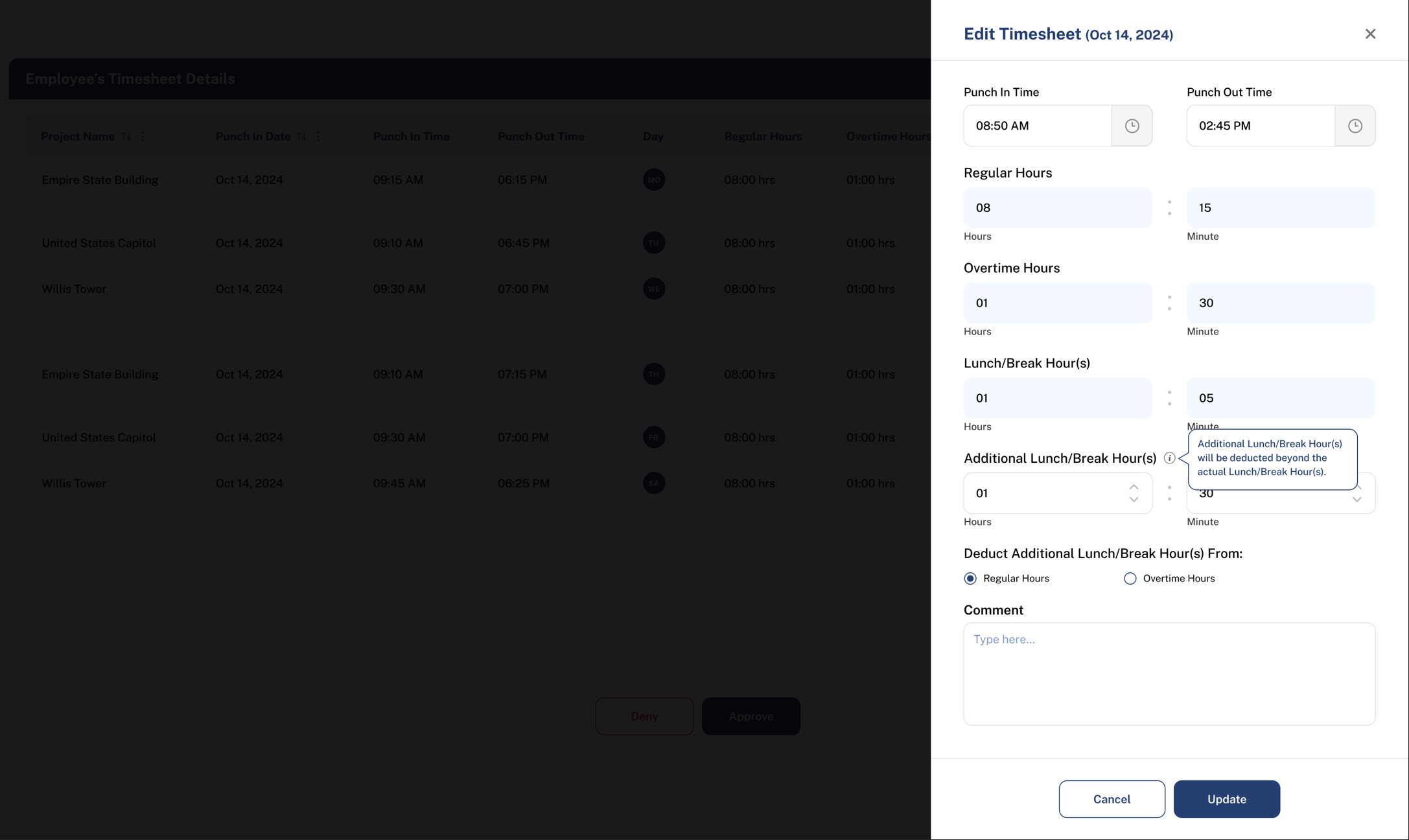
Click on the action button next to the timesheet you wish to edit.
Adjust the punch-in and punch-out times as necessary.
Regular and overtime hours are calculated automatically, with any hours worked beyond 40 in a week counted as overtime.
Add a comment to document the reason for the adjustment.
Click “Update” to save the changes.
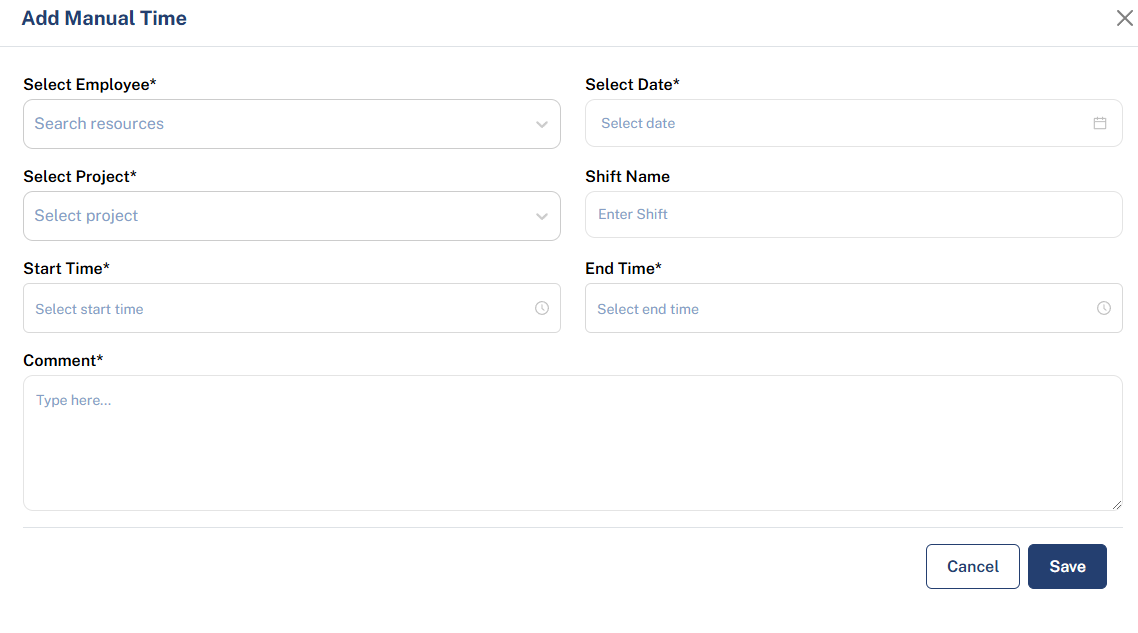
Add a Manual Time (CM Web Only)
Click on “+ Add Manual Time” for cases where employees forget to punch in or out.
Fill out the form with the correct times and associated project details.
Click “Save” to submit the manual time.
Click here to see video Instructions.