
Knowledge Base
- Home
- Roles ▼
- Registration ▼
- Main Dashboard ▼
- Project Management ▼
- Crew Management
- Resource Management ▼
- Form Builder ▼
- Safety Management ▼
- Documentation Management ▼
- New Submission
- Global Communications
- Timesheet Management ▼
- Reports ▼
- Chats
- Time Off Management
- Profile
- Subscriptions
- Location Tracking Behavior on iOS and Android
- FAQs
- Troubleshooting
Safety Representative
Description of the Role
Safety Representative (Safety Rep.):
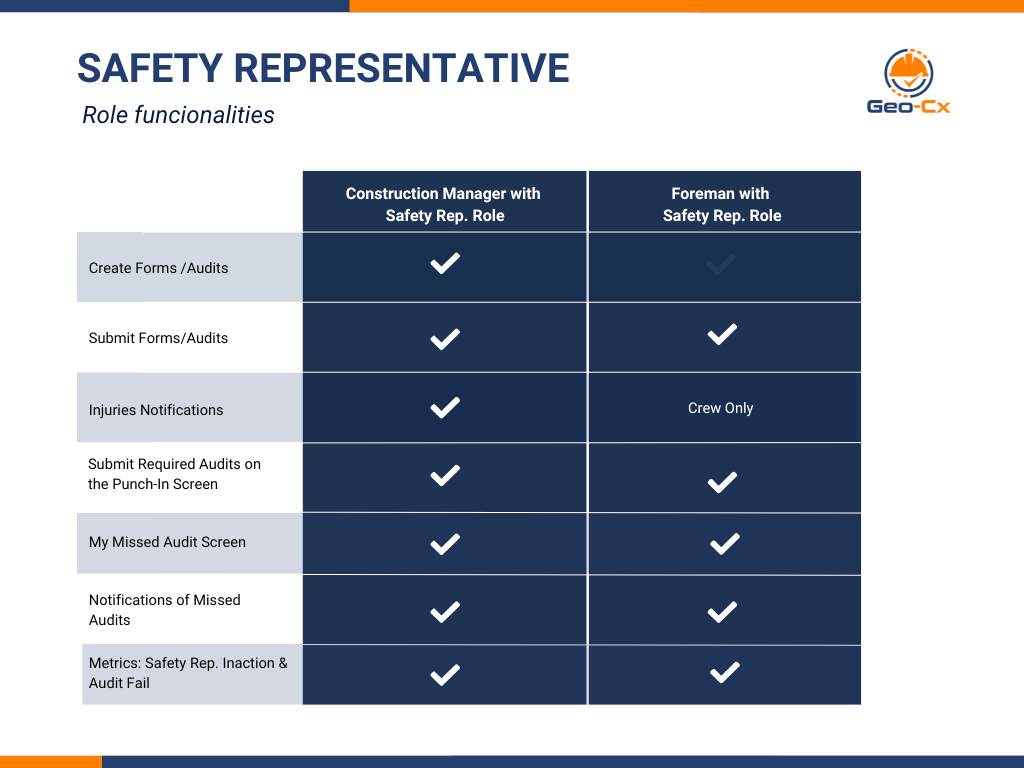
This responsibility is assigned to Construction Managers and Foremen to enhance project safety. Safety Representatives are notified of pending audits and can review submitted audits, as well as injury and incident reports.
Main Responsibilities
Conduct or review safety and QC inspections
Review Injury Reports
Submit missing audits
Safety Representative Features
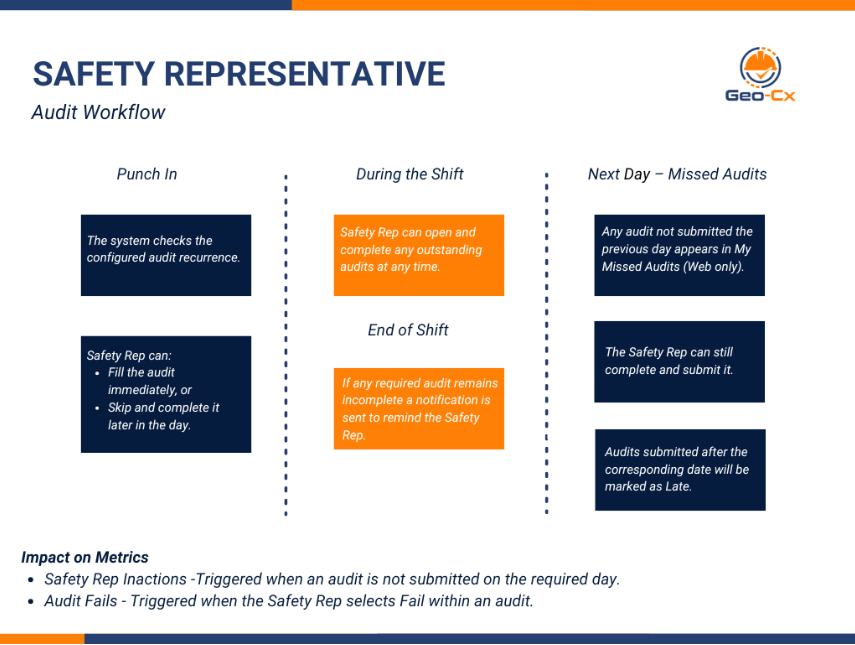
As a Safety Representative, you will have access to the audit forms assigned to you according to their configured recurrence. Immediately after you punch in, the system will display all audits you are required to complete for that day. You may skip them and submit them at any time during your shift.
If you have not submitted a required audit by the end of your shift, you will receive a notification reminding you that you have a pending audit. If you are unable to complete it that same day, the audit will appear the next day in your “My Missed Audits” menu (available on the web version only).
If an audit is not submitted on the correct day, the project dashboard metric Safety Rep Inactions will be impacted. Additionally, if you select Fail as the audit outcome, the metric Audit Fails will also be affected. Next, we have the workflow of the Safety Rep
Safety Rep Audit Workflow
1. Punch-In
Safety Rep punches in.
The system checks the configured audit recurrence.
2. Display Required Audits
All audits due for that day automatically appear.
Safety Rep can:
Fill the audit immediately, or
Skip and complete it later in the day.
3. During the Shift
Safety Rep can open and complete any outstanding audits at any time from ‘Submit Forms‘ Menu.
4. End of Shift
If any required audit remains incomplete:
A notification is sent to remind the Safety Rep.
5. Next Day – Missed Audits
The audit is marked as missed.
Any audit not submitted the previous day appears in:
My Missed Audits (Web only).
The Safety Rep can still complete and submit it.
6. Impact on Metrics
Safety Rep Inactions
Triggered when an audit is not submitted on the required day.
Audit Fails
Triggered when the Safety Rep selects Fail within an audit.
Safety Management
Here, you can report injuries and submit forms. Additionally, if the Foreman is also assigned to the Safety Rep. role, you’ll have access to a menu titled ‘My Missed Audits.’ This allows you to submit any audits you may have missed. After your shift, you will receive push notifications to inform you of any audits missed during the day.
Geo-Cx App Instructions
After being added to Geo-Cx by the company admin, you will receive an invitation via SMS. This message will include a link to download the application from Google Play.
After receiving an invitation via SMS, download and install the app. Register your phone number by verifying the OTP and set a new PIN. Once logged in, please accept the Location Permissions. If you need to learn more about location permissions in Android please click here. For iOS users refer to this link.
Geo-Cx App Menu
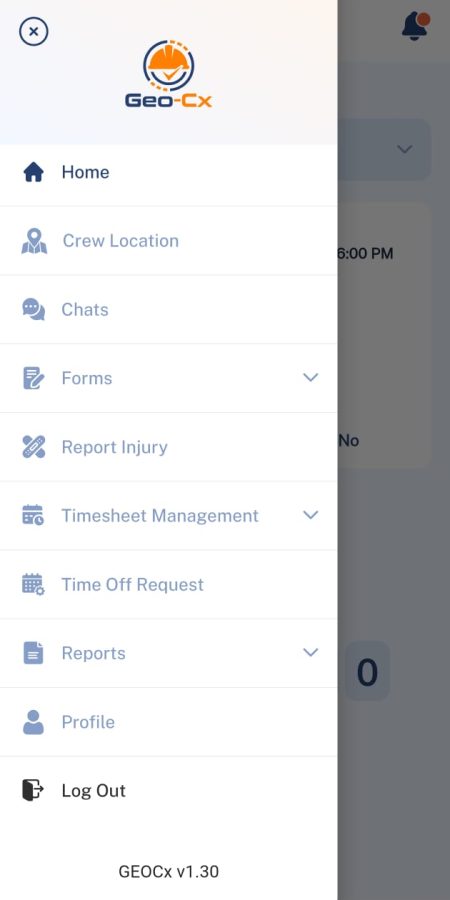
The Geo-Cx App Menu is your main navigation hub within the mobile app. Each section provides access to a core function of your daily workflow:
Chats: Communicate instantly with team members.
Forms: Submit audits, inspections, checklists, and project documentation.
Report Injury: Capture incidents in real time and notify supervisors.
Timesheet Management: Review and manage daily clock-ins and clock-outs.
Time Off Management/Request: Submit or approve time-off and PTO requests.
Reports: Access crew-level reports such as time attendance.
Profile: Update your personal information and view your role settings.
Use this menu anytime to switch between tasks efficiently and keep your project activities organized.
1. Home (Punch In/Out)
Select a project to punch in. Record today’s activities and use lunch/break as needed. Punch out at shift end. If injured, submit an injury report. Post-shift, you’ll receive an overtime notification, respond accordingly. Please note that in order to punch in, you need to fulfill some requirements, please access the section by clicking the button below to see more details.
As a Safety Representative, you will have access to the audit forms assigned to you according to their configured recurrence. Immediately after you punch in, the system will display all audits you are required to complete for that day. You may skip them and submit them at any time during your shift.
2. Forms
Go to Forms and submit Audits, Incident Reports, Impact Reports, Expense Requests, and Other type of Forms
3. Report Injury
Report any injury by submitting details and upload pictures.
4. Reports
View Timesheet Reports, Summary Reports, and Custom Reports.