Knowledge Base
- Home
- Roles ▼
- Registration ▼
- Main Dashboard ▼
- Project Management ▼
- Crew Management
- Resource Management ▼
- Form Builder ▼
- Safety Management ▼
- Documentation Management ▼
- New Submission
- Global Communications
- Timesheet Management ▼
- Reports ▼
- Chats
- Time Off Management
- Profile
- Subscriptions
- Location Tracking Behavior on iOS and Android
- FAQs
- Troubleshooting
Submit A Safety Document
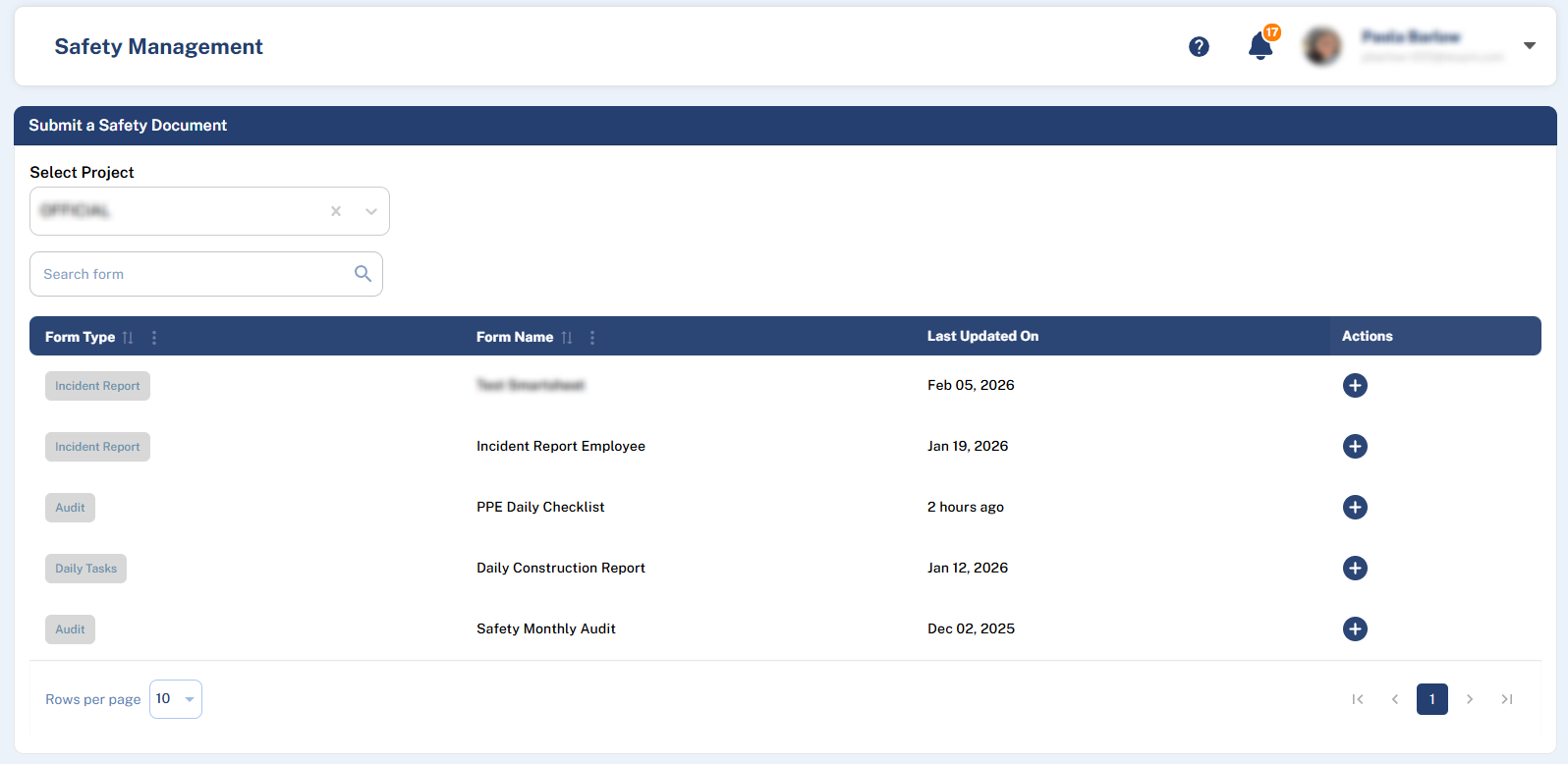
This section allows you to submit a document for any available safety form within your assigned projects.
Requirements
Before you begin, ensure your user profile has the Safety Representative role activated. This permission is required to submit forms.
How to Submit a Form
Select a Project: Use the Project filter at the top of the page to choose the relevant project.
Locate the Form: After selecting a project, a list of all available forms for that project will appear.
Use the Search Box to find a form by its name if needed.
The list displays the Form Type, Form Name, the last Updated On date, and an Actions column.
Open the Form: In the Actions column for your chosen form, click the + button.
Fill Out the Form: This will open the web version of the form.
Fill in all required fields in the current section.
Click Next to proceed to subsequent sections (if the form has multiple sections).
Submit: Once you have reached the final section or completed a single-section form, click the Submit button to send your completed form.